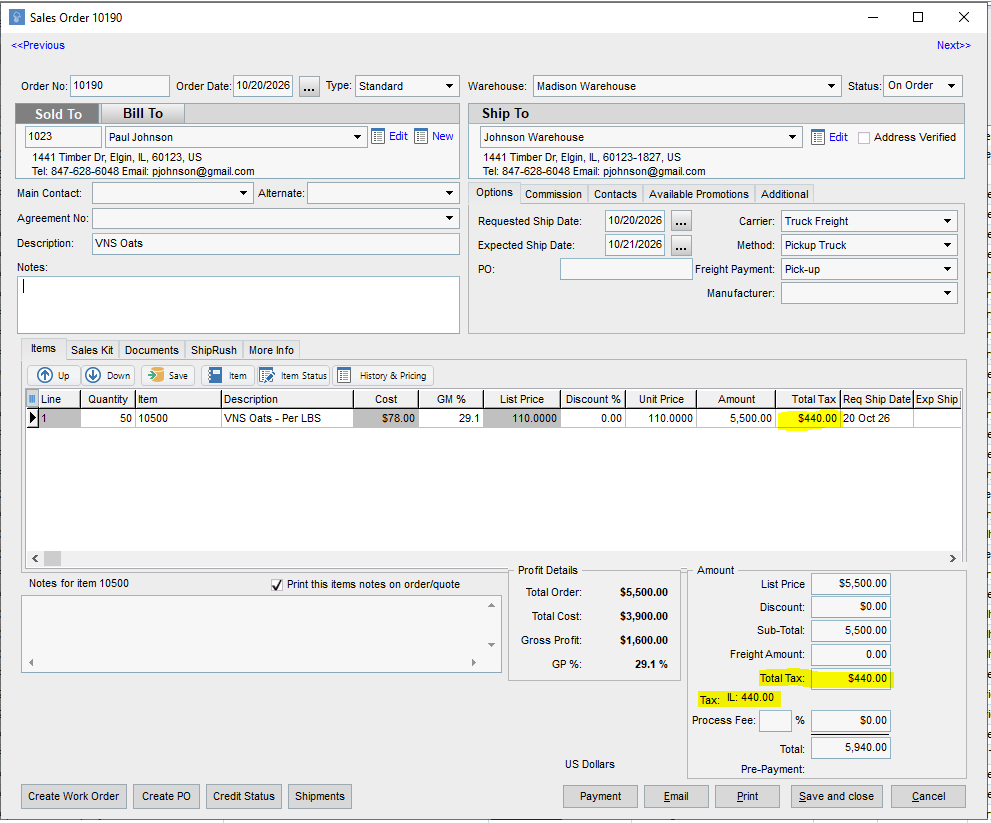
This article explains how to calculate sales tax onto a sales order.
This article also assumes that within the "Your Company" settings, under the "Tax Settings" tab that you have "Two Jurisdiction Tax Calculation" selected.
This article explains how to calculate sales tax onto a sales order.
This article also assumes that within the "Your Company" settings, under the "Tax Settings" tab that you have "Two Jurisdiction Tax Calculation" selected.
Setting up Taxes
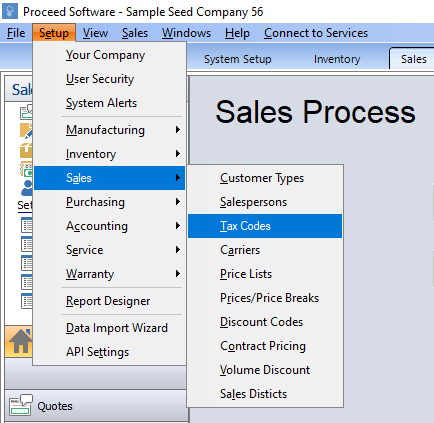
Go to Setup in the upper left corner. Go to Sales. Click Tax Codes. Here, you can add as many tax codes as you want.
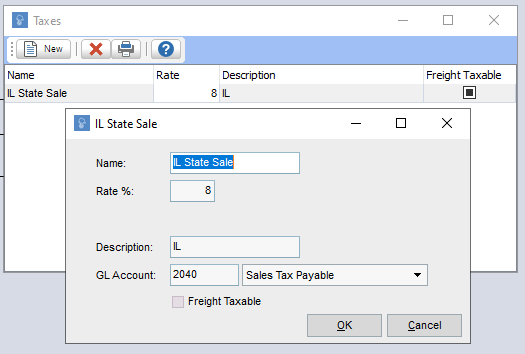
In this example we have a tax setup called IL State Sales and it is going to a Sales Tax payable GL Account. This means that when an invoice is created, it will post a transaction into the sales tax payable account.
To ensure that the sales tax is calculated on a sales order, there are two key components to establish: the customer and the item.
Customer Setup for Sales Tax
Go to the Sales Module. Select Customer from the left navigation. Click on the customer you want to edit.
Go to the Terms/Sales tab. Under the Taxes section is where you need to select the Tax that you want to be applied to this customer’s transactions throughout the system.
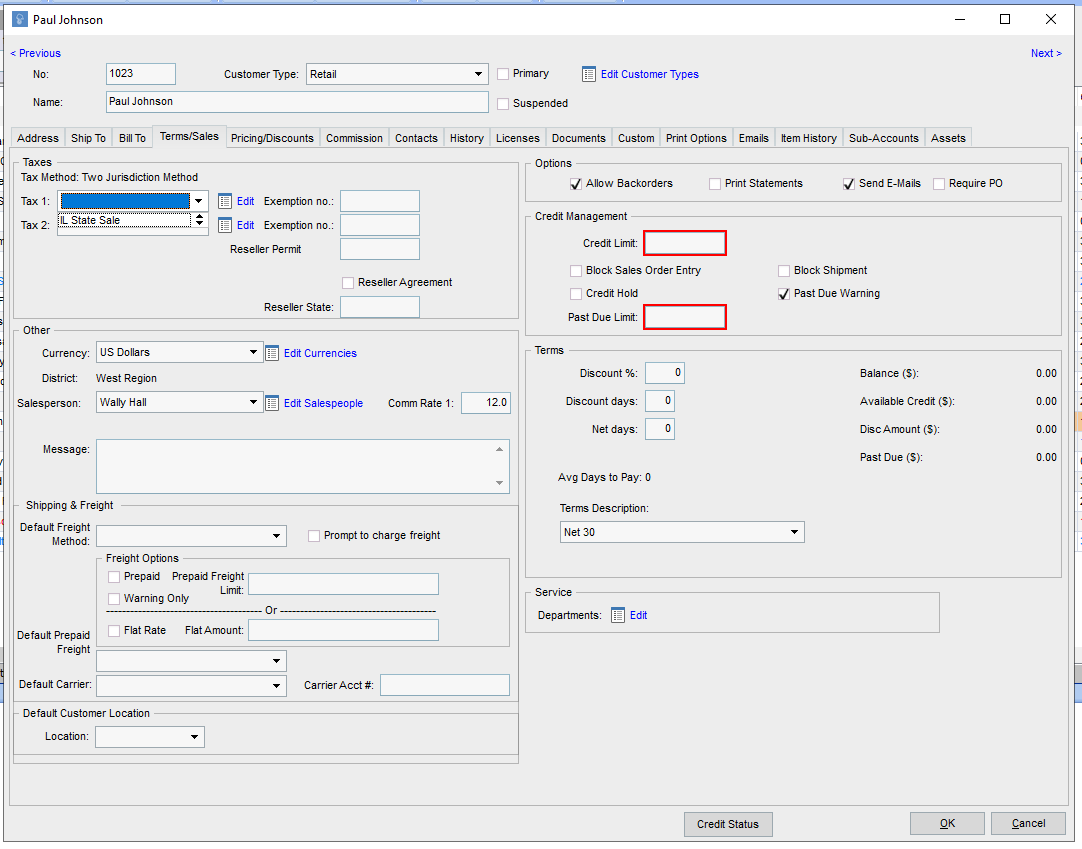
**Note: If you need to delete a selected tax or made a mistake, click on the field and then hit the “Delete” button on your keyboard.
Item Setup for Sales Tax
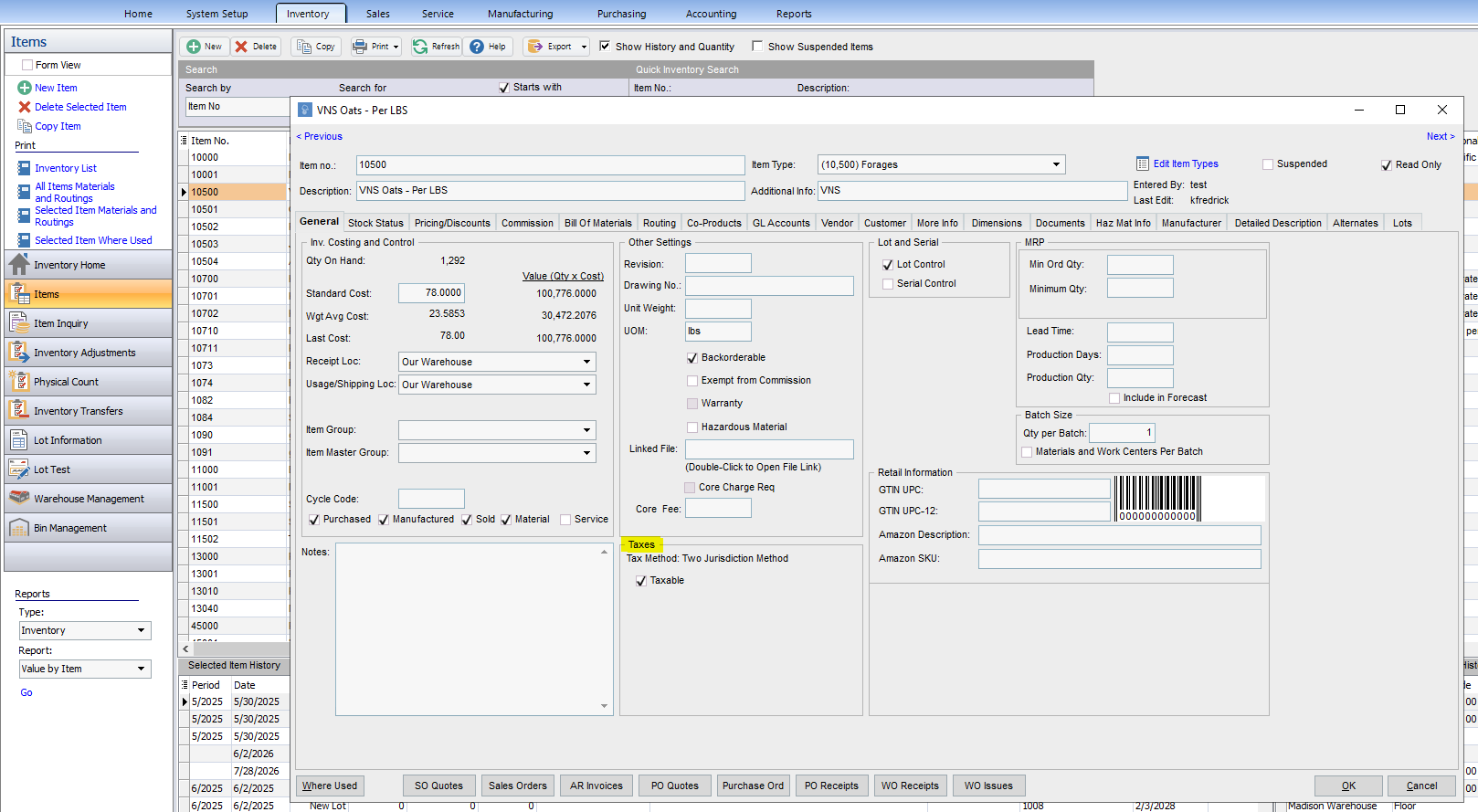
Go to the Inventory module. Select Items from the left navigation. Click on the item you want to edit. Remain on the General tab.
In the bottom middle of this screen is the Taxes section. If an item in your inventory should be taxed, select Taxable. If it is unchecked, the tax for this item will not be calculated.
Once you have these aspects setup, you can create a sales order like normal.
With both the Customer and Item setup for taxes, you can see the Total Tax applied to both the Item line and the Amount section. You can also see the name of the Tax that is being applied.