
We are using Proceed ERP Software and are wondering how we go about adding a mobile user to Proceed Software.
1 Answers
In order to add a mobile app user, the user needs to be first added to Proceed Software. Then once added, the user is setup in Proceed, you'll need to add his/her mobile permissions. Once everything is configured in Proceed Software, then the user can use the mobile app. This answer takes you through this process:
-
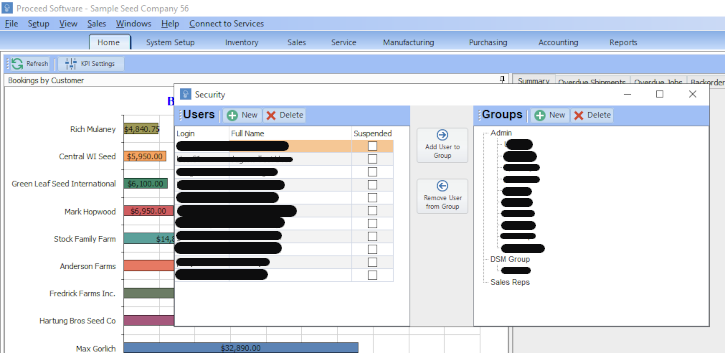
Setting Up User in Proceed. You'll need to first add the user to Proceed Software. Navigate to Setup -> User Security
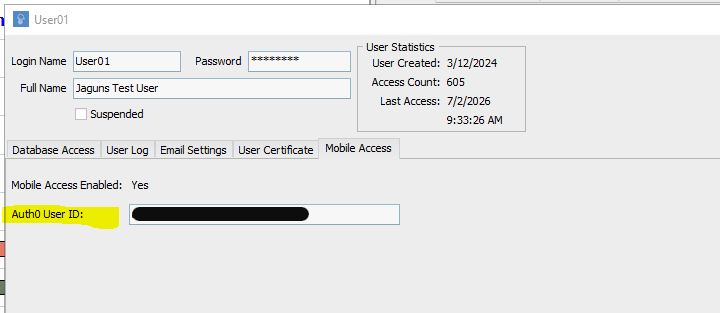
Add the user using the "Add Button", then configure the user so that he/she can access the appropriate Proceed Database. Then navigate to the "Mobile Access", based on your company settings, the user will be allowed mobile access on this screen and there should be a userID shown in the field. See image below:
-
Then assign the user to a Security Group by clicking on the user and the Security Group, then click on the button "Add User To Group". When the user is added to the group, the user should show up under that Security Group. Be careful not to add a user to more than one Security Group, Proceed Softare will get confused if you do.
-
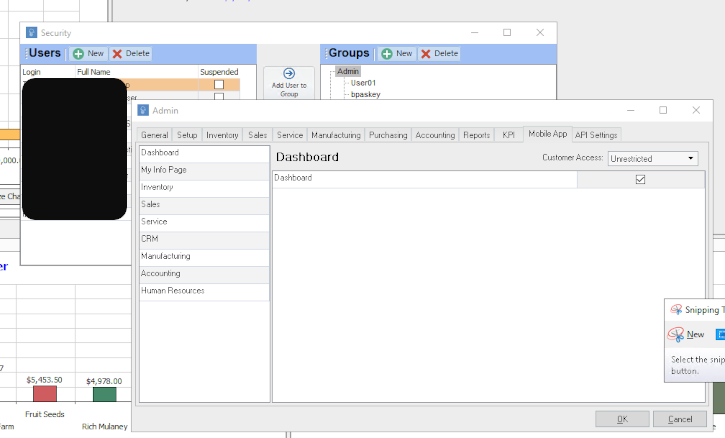
Once the user is added and assigned to a Security Group, then you will need to set the Mobile Permissions. Double click on the Security Group, which will popup an Admin form for the Security Group. Then navigate to the "Mobile App" tab, this tab is then used to control what this group of users can access in the Mobile App.
-
When youre mobile user is setup in Proceed Software and configured, your user should get an automated email allowing them to create the username and password for the mobile app.
-
Now that your username and password is established in the mobile app, the first time you log into the Proceed Mobile App, you'll need to setup multi factor authentication (MFA) through your local authenticator application. In this example we'll demonstrate using "Google Authenticator".