
In this article, we'll walk through how to account for seed you've contractred to be grown, but aren't sure how to account for it in your inventory.
1 Answers
Let’s say that you have a contract for seed to be grown next year. And you want these units to appear on your Materials Resource Planning (MRP) dashboard for your planning. This provides you with a global picture of your inventory and the quantities available.
In Proceed, the best way to account for this situation is through a Purchase Order.
There are two conditions you will run into.
Condition #1: You would directly receive the variety grown out in the field into your inventory. In this condition there is no need to close the purchase order and open a new one because you will be receipting the same variety into your inventory.
Condition #2: You may not directly be receiving the variety of seed grown out in the field, rather you’ll be receiving finished seed products that are derived from the seed grown. This condition requires an additional step. In this step you would close the Purchase Order that you originally created and then create a replacement purchase order with the actual seed products that you intend on receipting from the vendor and into your inventory.
These two processes are outlined below in this article.
Condition #1:
Start by creating a Purchase Order.
Create the purchase order with the variety that the vendor will be growing for you in the upcoming season. This will show up as inbound quantities via the Purchase Order.
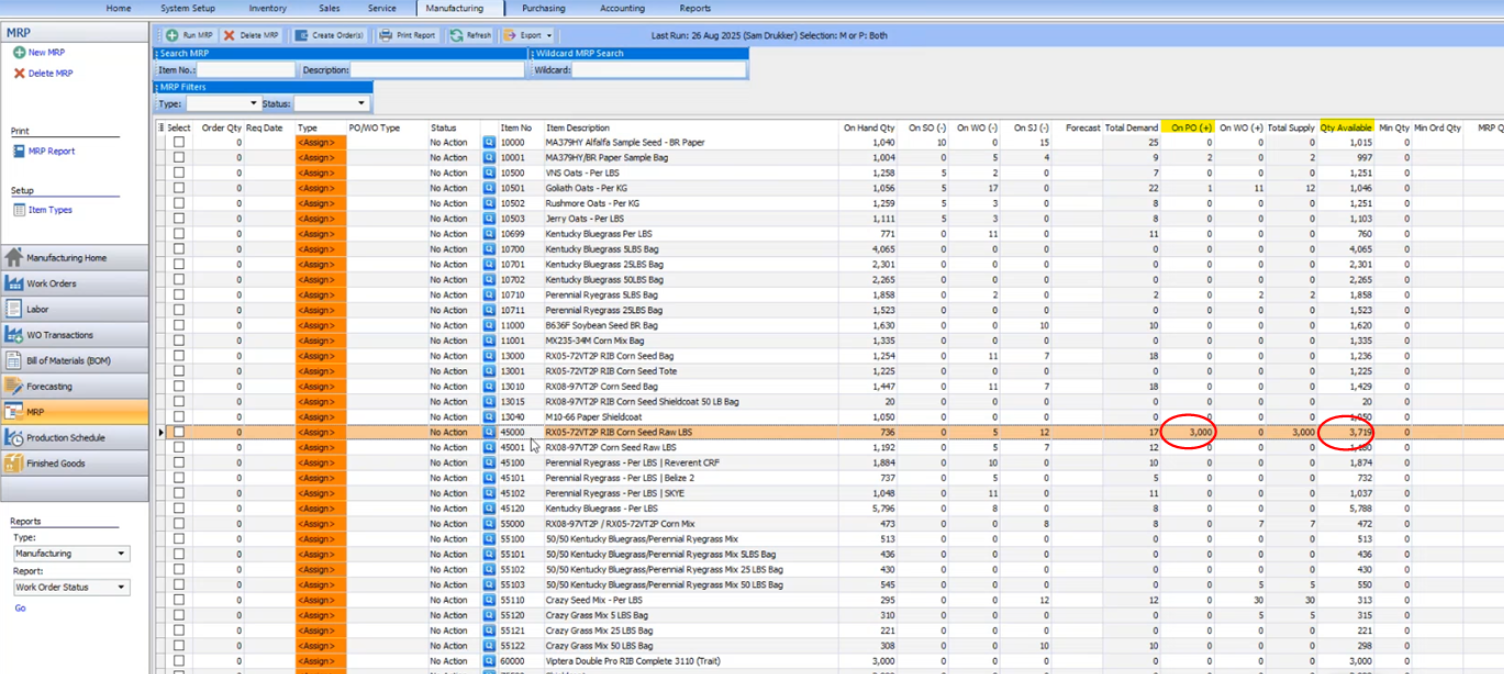
Run MRP. Here, you can view the amount you have on Purchase Order and see the Purchase Order accounted for in your total “QTY Available” for that item. The Purchase Order creates additional quantities that represent the growing contract for the upcoming year.
Then, when the contract is fulfilled, create an Inventory Receipt to receive the items fully into your inventory.
This ends Condition #1.
Condition #2:
Similar to Condition #1, you will need to start by creating a Purchase Order with the variety that the vendor is growing for you. You’ll be able to view the “QTY Available” for that item on the MRP screen. The Purchase Order creates additional quantities that represent the growing contract for the upcoming year.
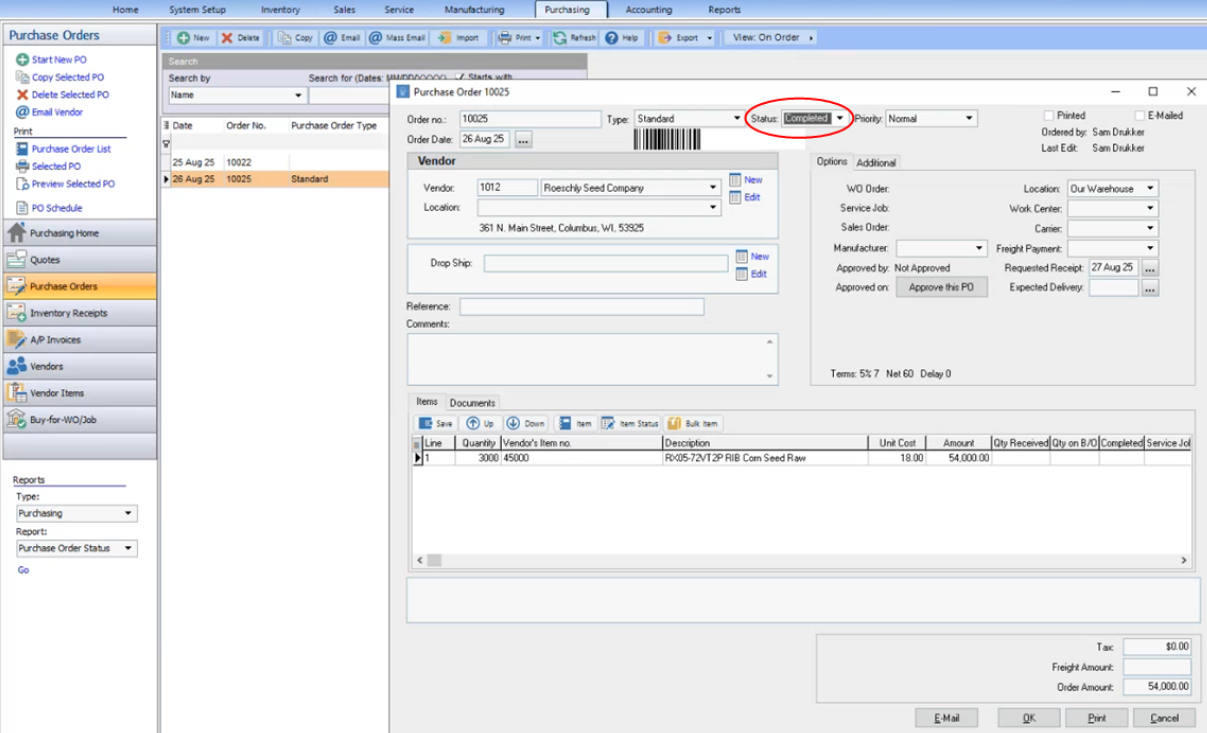
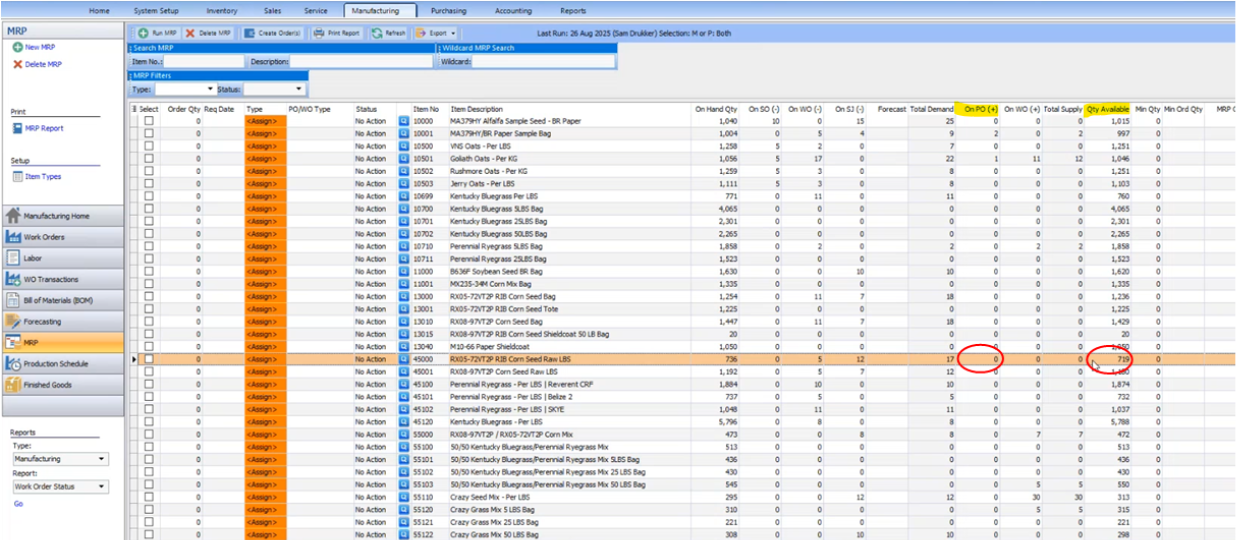
When you need to remove the Purchase Order from the item inventory (the seeds have grown, or you know how they’re going to be utilized) return to the Purchase Order and change the status to Completed. This will remove the quantity from the MRP record.
Then, create a new Purchase Order for the actual stock items from the vendor that will come into your inventory.
Create an Inventory Receipt for the items like normal.
This ends Condition #2.