This article explains how users can manage lot tests in Proceed ERP Software.
1 Answers
Proceed allows users to track Lot Testing of materials within the system. The types of lot tests are standardized across all systems. There are two ways a user can create a new lot test:
Option 1: Go to the Inventory module. Select Lot Test from the left navigation. Click New in the upper left corner.
Select the Lot Number.
Enter the Test Date and Technician if there is one.
Then, select the Type of Lot Test you are performing and enter the results from the test as well as any notes you want to add.
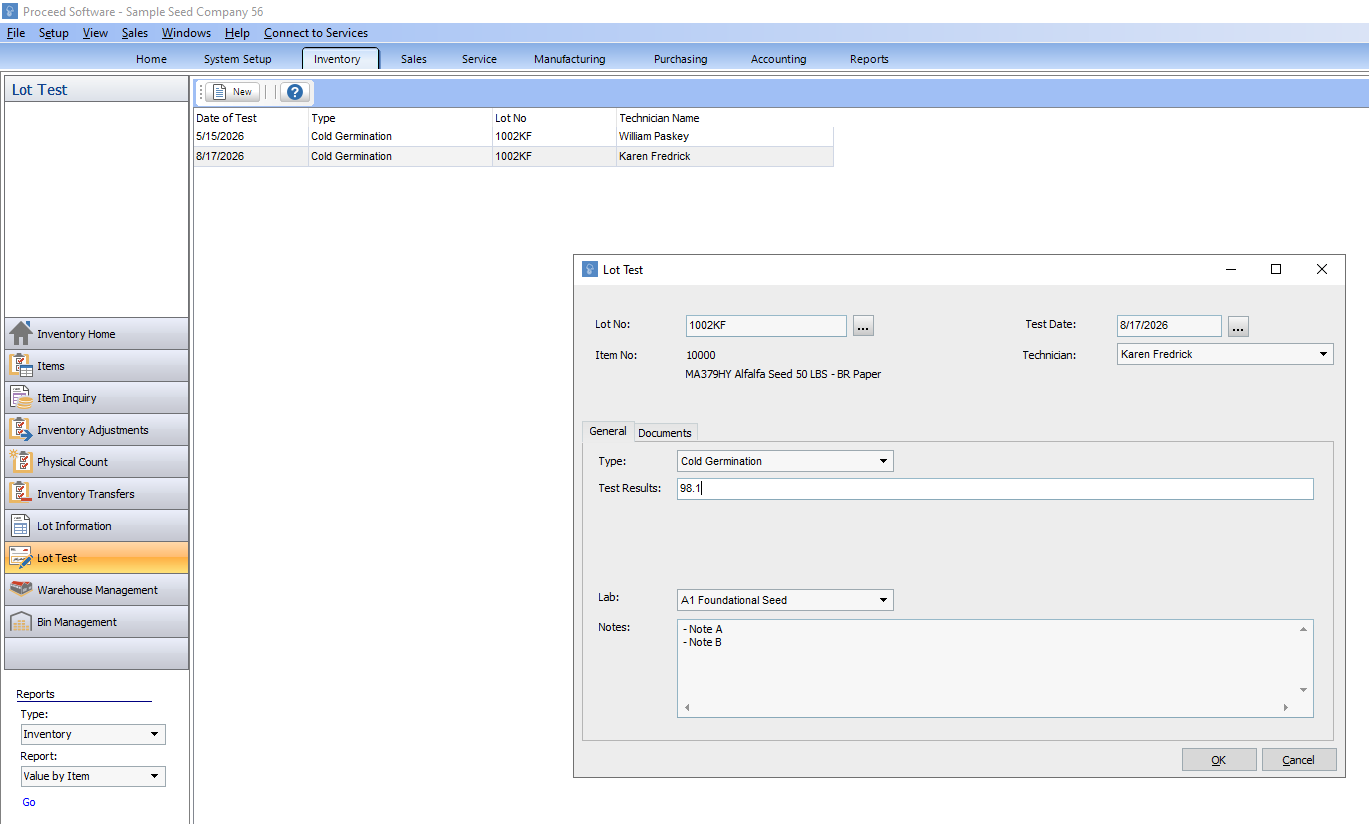
Option 2: Go to the Inventory module. Select Lot Information from the left navigation. Locate the lot you want to test. Right click on the lot. Select New Lot Test. Follow the steps above the fill out the record.
Note: Lot Tests will appear in both the Item History and the Lot History.
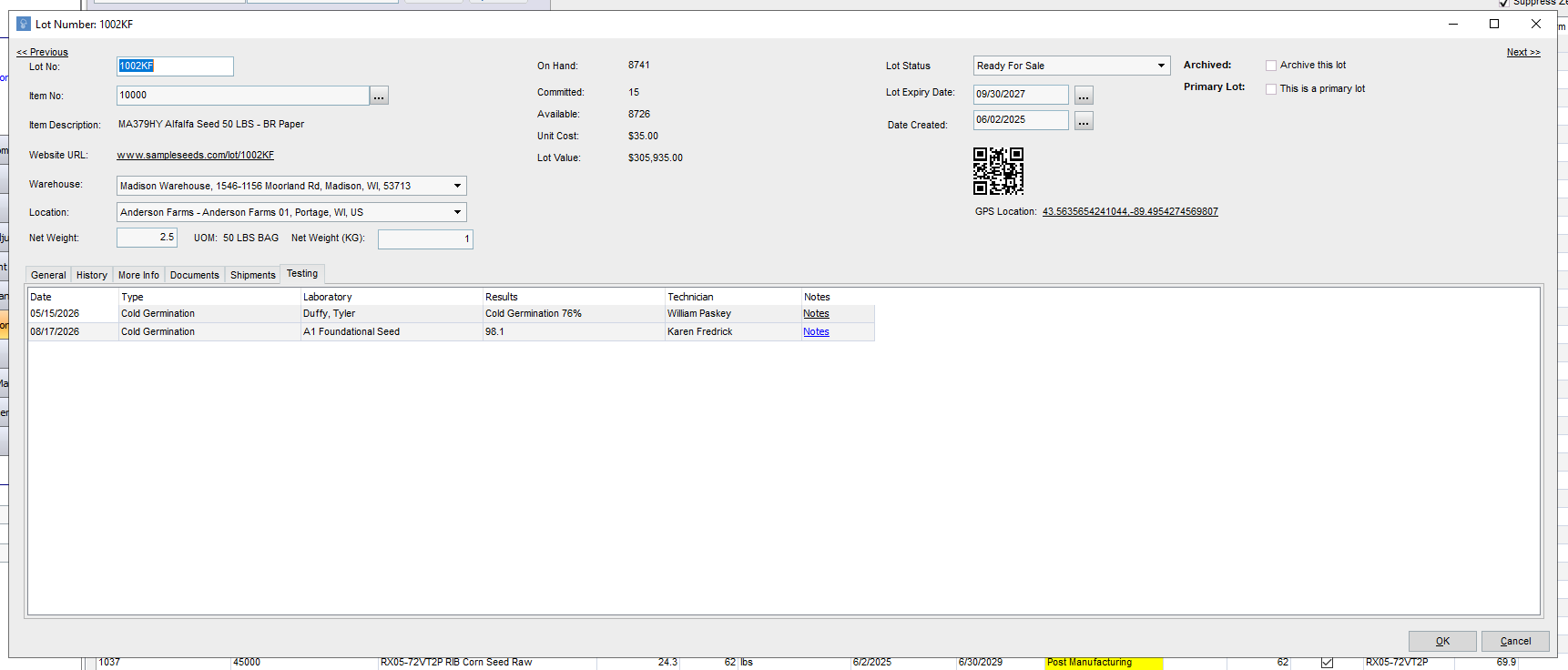
If you would like to view the testing history for a single lot, go to the Testing tab on edit lot screen.

Related
What is a primary lot number in Proceed Software?
1 answers
How does MRP work in Proceed Software?
1 answers
How do I manage Lot Tests in Proceed Software?
1 answers
How do you distinguish between a non gmo and gmo item in Proceed ERP Software
1 answers
What is the overall contract grower process in Proceed?
1 answers
Is there anything in Proceed Software for managing contract growers in Proceed?